Device Details
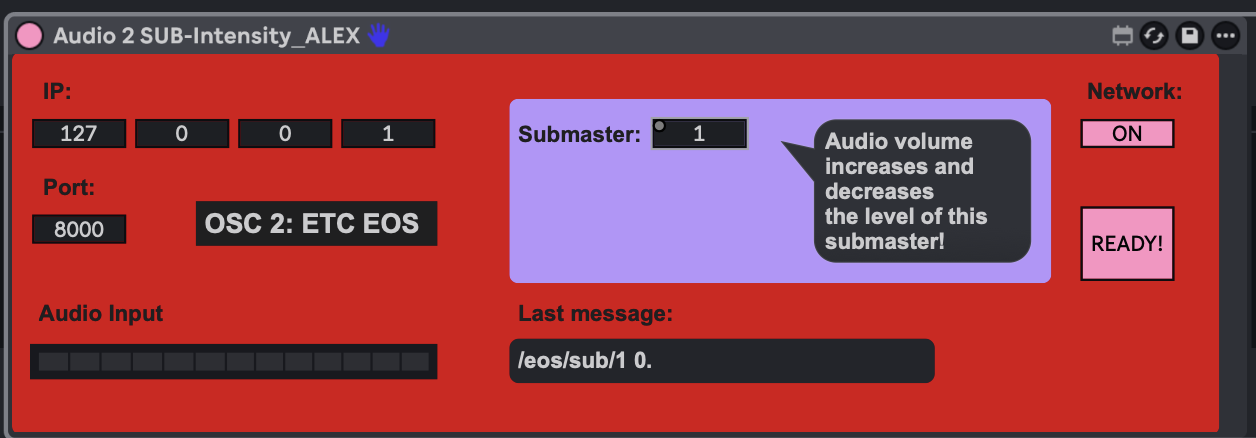
Overview
| Name | Version: | Audio2Subintensity 1.0 |
| Author: | alexxaudio |
| Device Type: | Audio Effect |
| Description: | Ableton / Max4Live Devices to control ETC-EOS Lightdesks via OSC / Audio & MIDI Hi there! I work as an audio engineer in theater, and I wanted to be able to precisely control lights and lighting cues along with audio. I was really unhappy with the existing options, so I decided to build my own Max for Live devices. If you are running a show with Ableton / M4L & ETC EOS, these devices might be just as useful for you. Here is an overview of how they work. All of the devices share these core features: • IP Box: Enter the IP address of your ETC EOS lighting console here (Default: 127.0.0.1 / localhost). • OSC Port: Enter the network port you are using (Default: 8000). • Network Switch: Turn the network connection on or off. I recommend turning it off while writing automation to avoid creating chaos on the lighting desk. • "READY" LED: After loading the plugin into Ableton, it takes 2 seconds for the network connection to initialize. This intentional delay prevents an initial "network bump" from accidentally sending a CUE 0 / Blackout command to the EOS console. Audio 2 Sub-Intensity: Incoming audio volume increases and decreases the level of the selected submaster. It works perfectly with pre-recorded playbacks or live audio (simply route your microphone or audio group to the Ableton track and set the Monitor to "In"). Video: https://youtu.be/wSAQZ6XWeks?si=5_qSOgDY5fwdh1iE Other devices: https://maxforlive.com/profile/user/alexxaudio |
Details
| Live Version Used: | 12.0.5 |
| Max Version Used: | 8.6.2 |
| Date Added: | Jul 05 2026 09:57:16 |
| Date Last Updated: | Jul 05 2026 10:00:03 |
| Downloads: | 0 |
| Website: | https://alexxaudio.gumroad.com/l/audio2sub-intensity |
| ⓘ License: | Commercial |
Average Rating
Log in to rate this device |
-n/a- |
Login to comment on this device.
Browse the full library